

An app may install without difficulty and still fail where it matters: the feed will not refresh, messages arrive late, uploads freeze, or the update button does nothing. Most problems can be solved without resetting the phone when you check the installation source, connection, storage, and background permissions in a sensible order.
Table of Contents
Confirm the Version and Installation Source
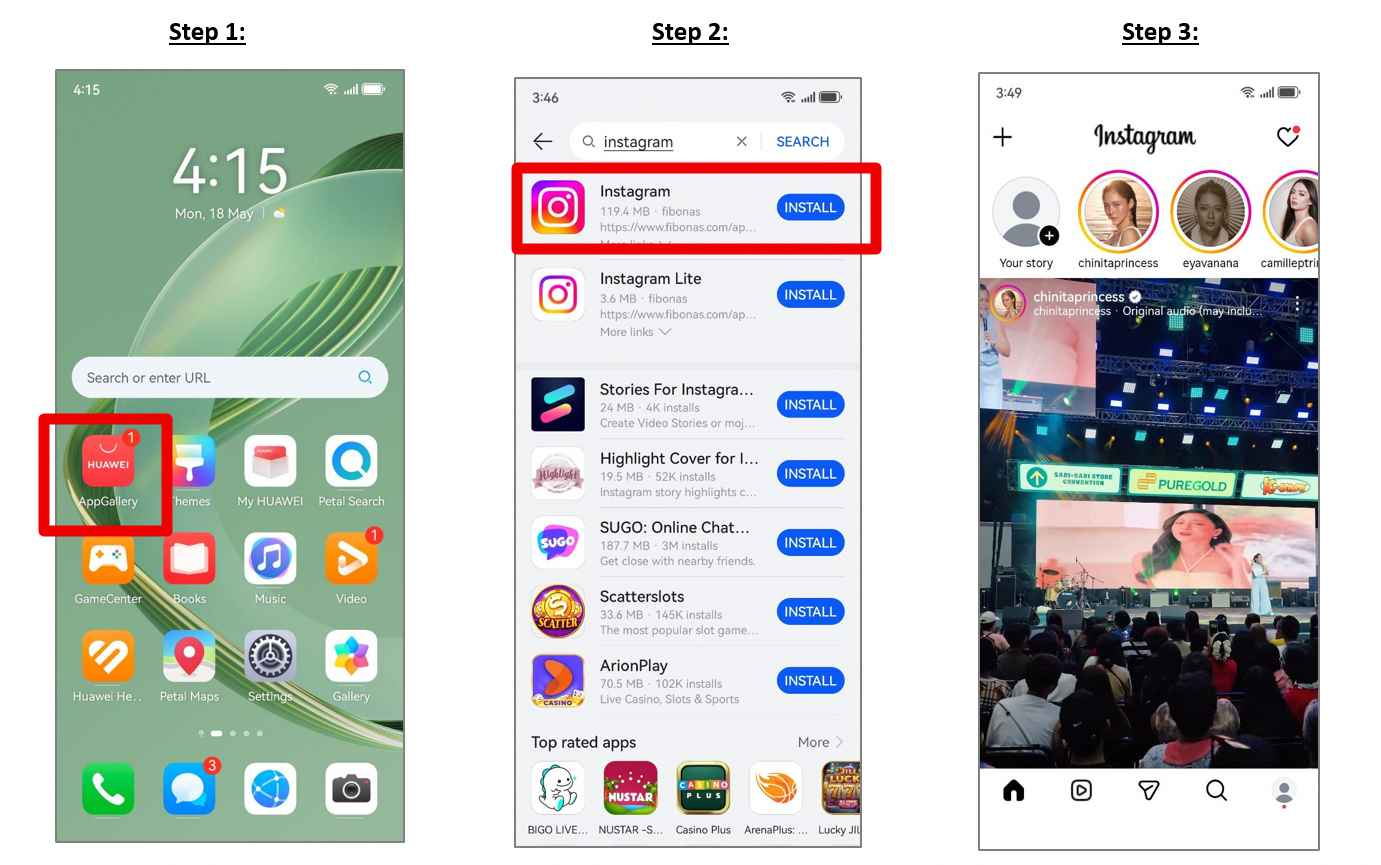
Open AppGallery, search for Instagram, and install any available update. Huawei’s huawei instagram community page identifies AppGallery as the download route and the place to check when the app needs updating.
Avoid keeping different Instagram packages from several sources. Conflicting versions can cause failed updates, repeated login prompts, and notification problems. If you previously installed an unofficial copy, remove it before returning to AppGallery, but make sure your password and recovery details are available first.
Fix Login and Feed Problems
Begin by switching between Wi-Fi and mobile data. Set the phone’s date and time to automatic, restart Instagram, and try again. An unstable public network can interrupt secure sign-in or leave the feed stuck on old content.
If Huawei Instagram opens but remains slow, go to the app settings and clear the cache. Clearing storage is a stronger action because it signs you out and removes local preferences, so leave it until the network, restart, and cache checks have failed.
Restore Uploads and Notifications
Check camera, photo, microphone, mobile-data, and notification permissions. Then review App launch or battery management. Allowing Instagram to run in the background can help direct messages and upload progress continue after the screen is locked.
Test one predictable notification, such as a direct message, instead of enabling every category at once. If a Reel or Story upload freezes, save the original file, use a stable Wi-Fi connection, and try a shorter or lower-resolution version.
Solve Update and Storage Errors
A failed update may be caused by low storage, an interrupted download, or an outdated AppGallery component. Free space, restart the phone, update AppGallery, and repeat the download on a stable connection.
Reinstall Instagram only after these checks. Reinstallation can remove drafts and local data, so save important media first. A clean AppGallery installation often resolves damaged files without requiring a full device reset.
Troubleshoot One Change at a Time
The fastest fix is not always the most aggressive one. Start with the official version, then check the network, cache, permissions, storage, and background activity in that order. Testing after each change shows what actually solved the problem.
Use the huawei instagram instructions as the installation baseline. Once that baseline is correct, most remaining issues can be isolated without relying on risky downloads or unnecessary system changes.
 sweety
  mindmingles